Help/Compliance/Resolutions
Resolutions
Prepare a company resolution, send it to the people who need to sign, and have each of them sign on their phone. When the last person signs, you get the signed copy and your records update themselves.
Screenshots use a fictional company and people. Select an image to view it full size.
Which resolution to use
There are seven. Each one knows who has to sign it and what has to happen afterwards.
| Use this | When you want to | Who signs | Afterwards |
|---|---|---|---|
| Appoint a company secretary | Name a new secretary | Every director, plus the new secretary | Company Setup updates. Tell ACRA within 14 days |
| Skip the AGM for a financial year | Not hold an annual general meeting this year | Every shareholder | That year’s AGM is ticked off your list |
| Declare a dividend | Pay shareholders out of profits | Every director | “Pay the dividend” goes on your Upcoming list |
| Open a bank account or change who signs | Give the bank the resolution it asks for | Every director | Hand the signed copy to the bank |
| Any other directors’ decision | Record anything else, in your own words | Every director | Kept in your documents |
| Employ a spouse or family member | Put a family member on the payroll properly | One director, and the person being employed | Add them in Payroll |
| Issue new shares | Bring money into the company as shares | Every director and every shareholder, once each | Collect the money. Tell ACRA within 14 days. Full guide |
Prepare and send it
-
Go to Compliance, then the Resolutions tab.
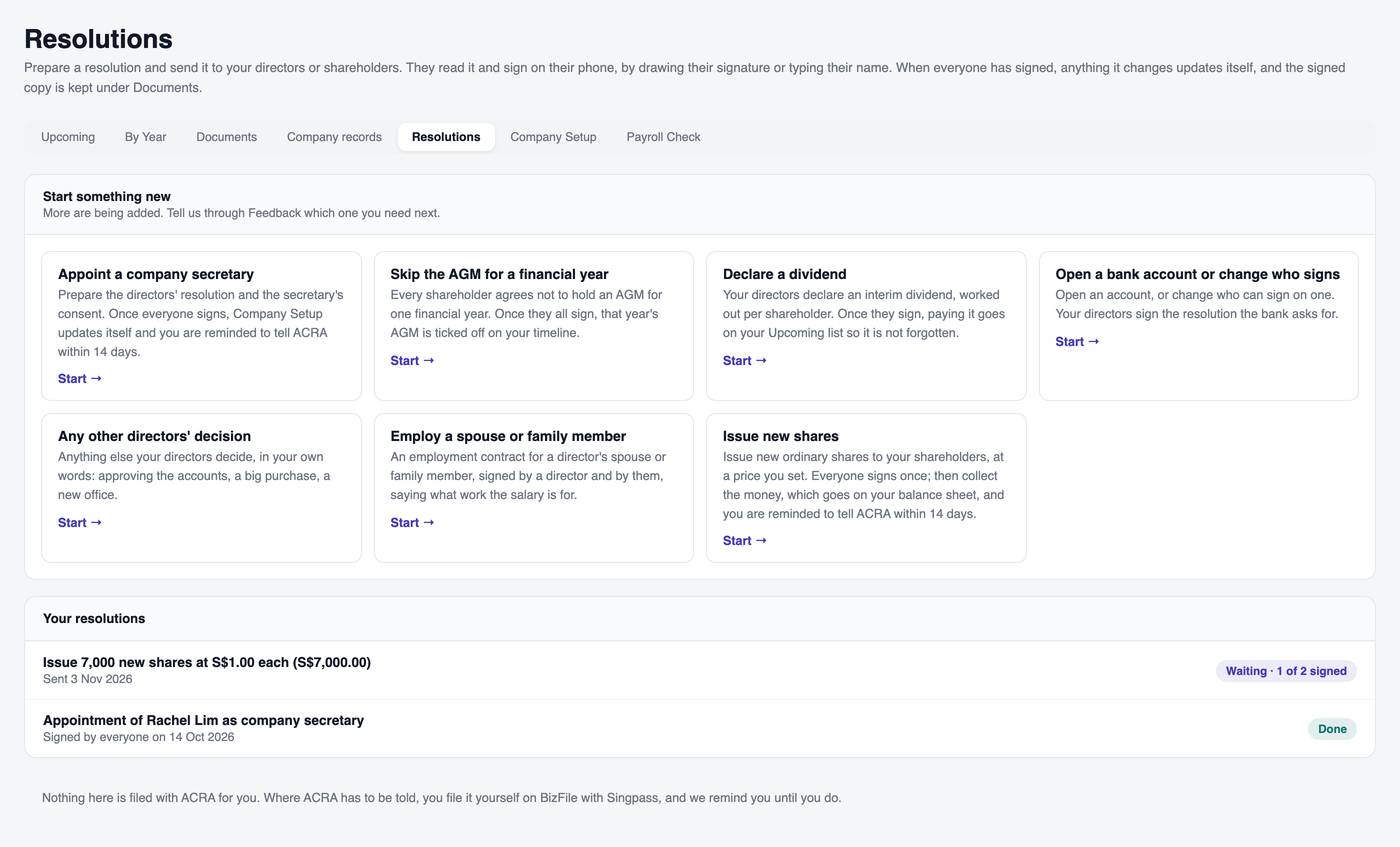
Choose a resolution under Start something new. Your existing resolutions appear below. Open full size -
Under Start something new, pick the one you need and press Start.
-
Fill in the details it asks for. Each one asks only what it needs: a dividend asks the amount per share and the payment date, a secretary asks who and from when.
Names and share counts come from Company Setup. If someone is missing or a number is wrong, fix it there first.
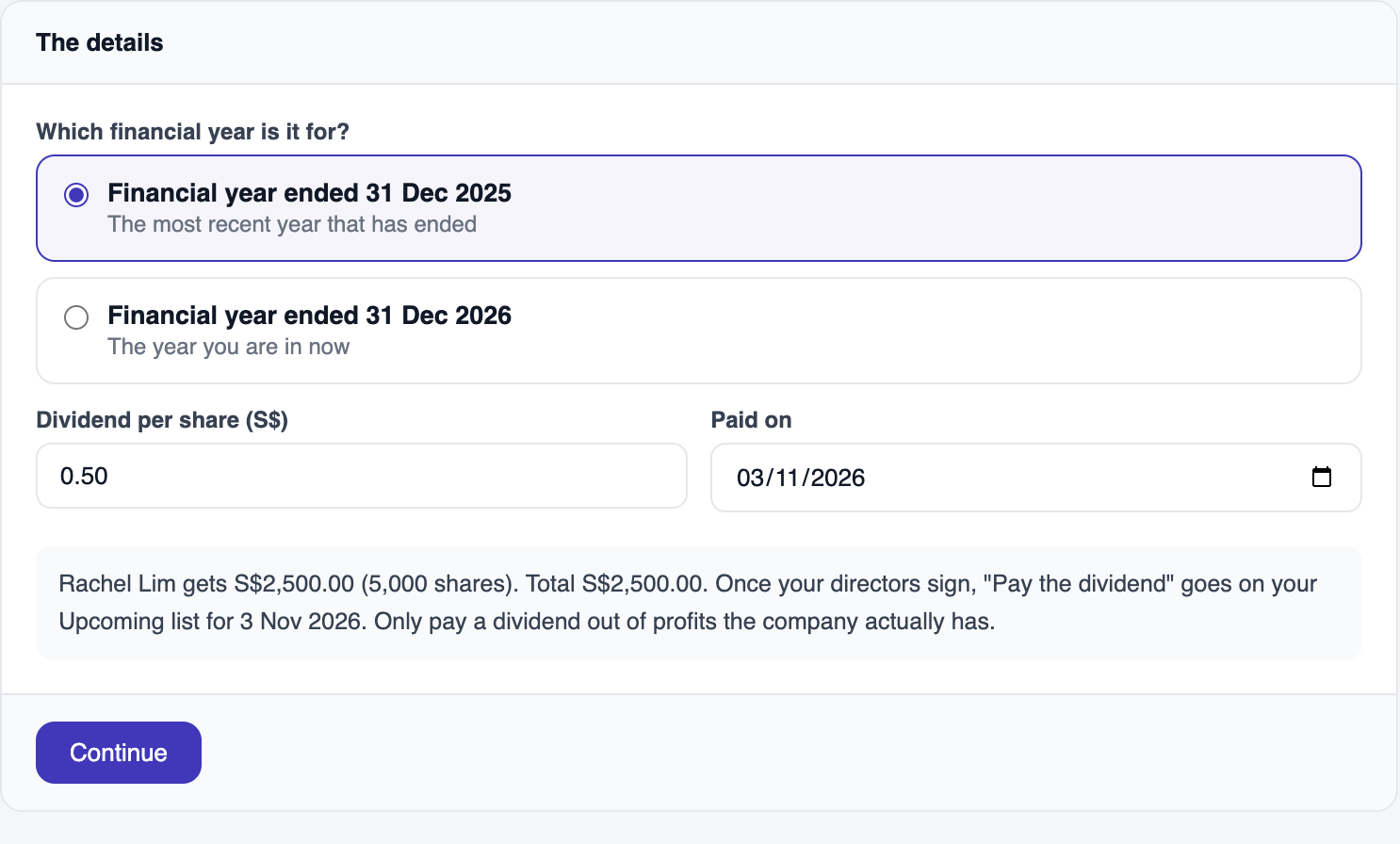
Example: enter the dividend per share and payment date, then check the calculated payout. Open full size -
Press Continue. You see the exact wording on the left and who signs on the right.
Each person needs an email for their signing link. It is filled in from Company Setup where we have one. Type one in if it is missing, and it is saved for next time. You can also leave it blank and send the link yourself, by WhatsApp for example.
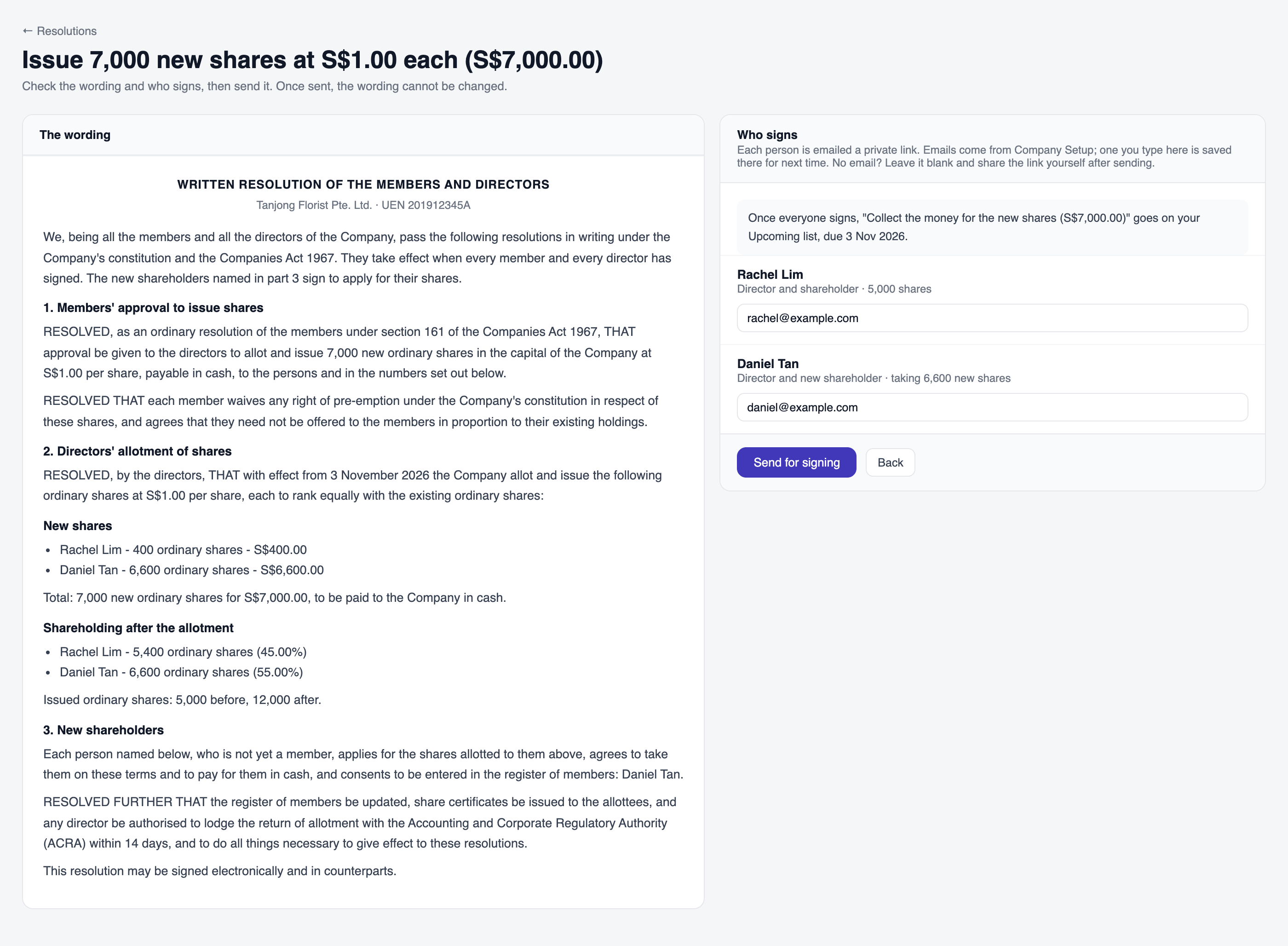
Check the wording and each signer’s email before pressing Send for signing. Open full size -
Read the wording carefully, then press Send for signing. Everyone with an email gets their private link straight away.
Once sent, the wording cannot be changed. Everyone signs the same fixed document. If something is wrong, cancel it and start a new one.
Follow who has signed
Open the resolution from Your resolutions. The page refreshes itself while you wait, and each person shows one of:
- Not opened yet: they have not opened their link.
- Opened, not signed: they have looked but not signed.
- Signed, with the date and time.
Next to anyone who has not signed there are three buttons:
- Email again sends their link once more. You can change the email address in the box first.
- Copy link copies their private link so you can paste it anywhere.
- WhatsApp opens a chat with them with the link already written.
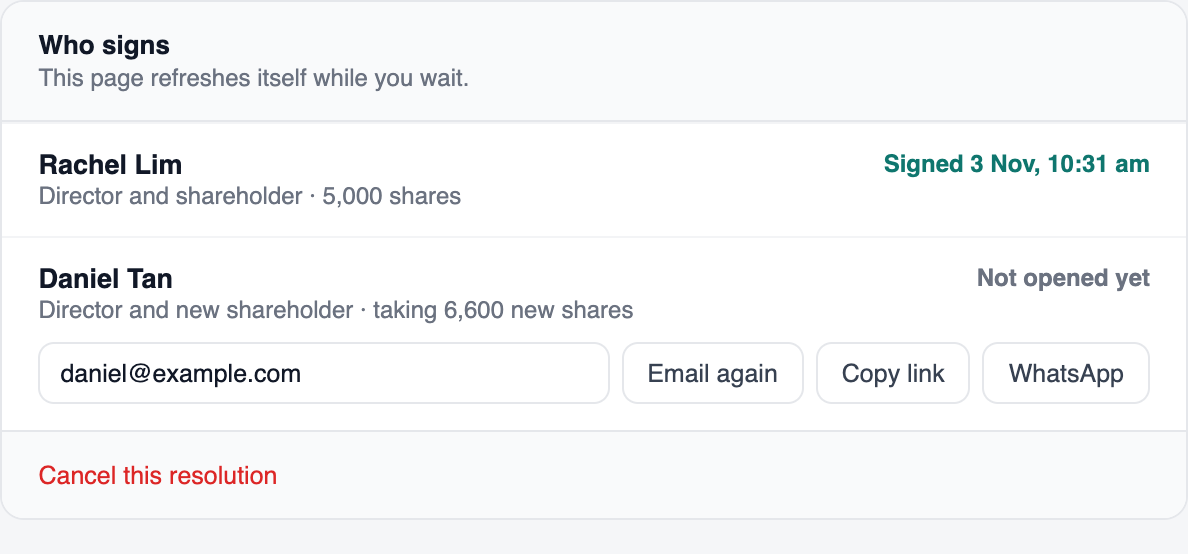
Made a mistake? Press Cancel this resolution at the bottom. Nobody can sign it after that, and any signatures already given are set aside.
What the person signing sees
They do not need an account or a password. It works on any phone.
-
They get an email headed Your signature is needed, sent in your company’s name, and press Read and sign.
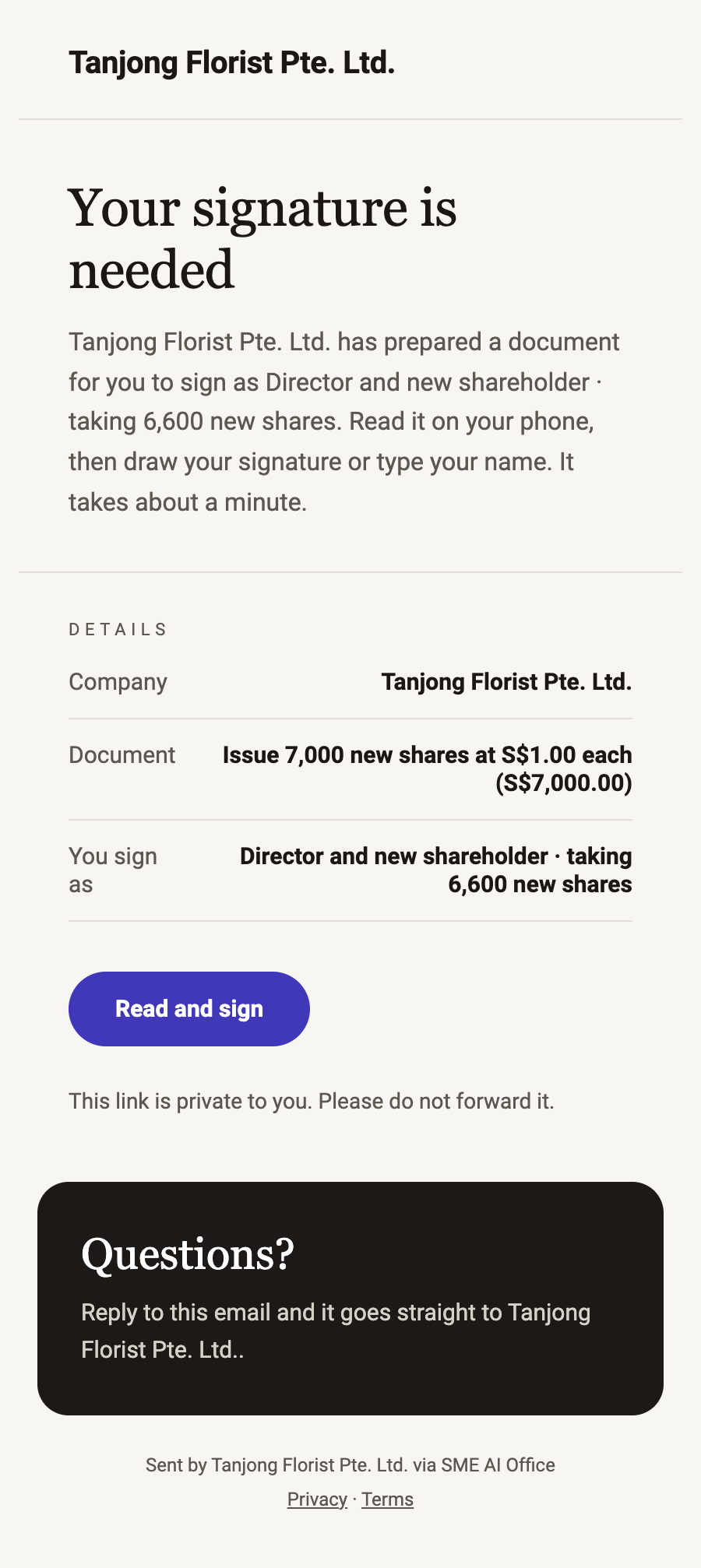
The signer receives a private email link. Press Read and sign to open the document. Open full size -
They read the whole document on the page.
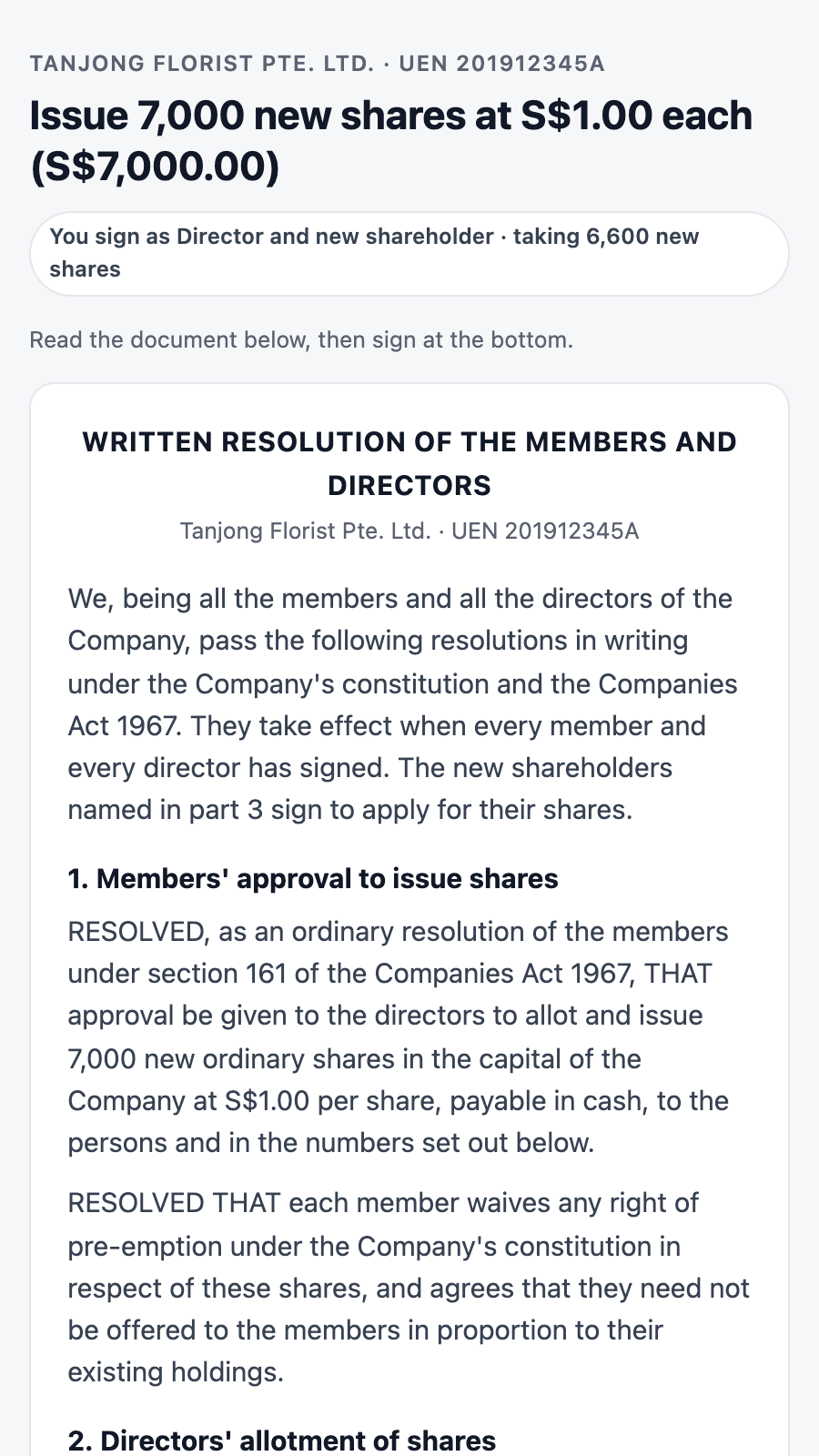
Check your role and read the whole document. Scroll down to reach Your signature. Open full size -
At the bottom they either Draw their signature with a finger, or choose Type my name and type their full name exactly as shown.
-
They tick the box confirming they have read it and agree that signing electronically is the same as signing by hand, then press Sign.
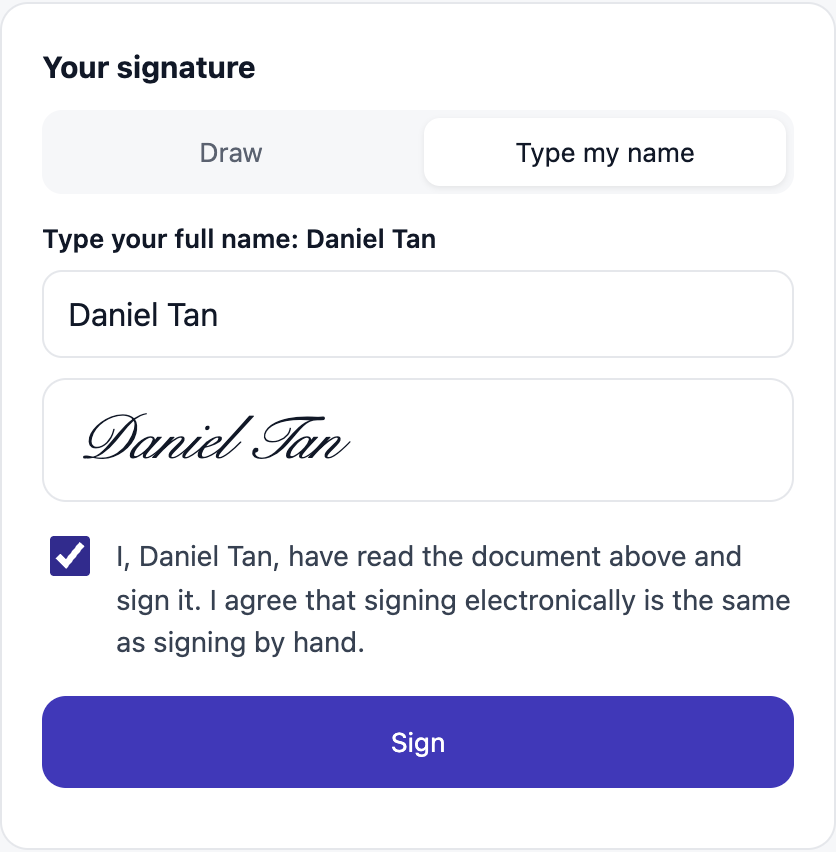
Type the full name exactly as shown, tick the agreement after reading, then press Sign. Open full size
After signing they see who else still has to sign. When the last person signs, everyone is emailed the signed copy.
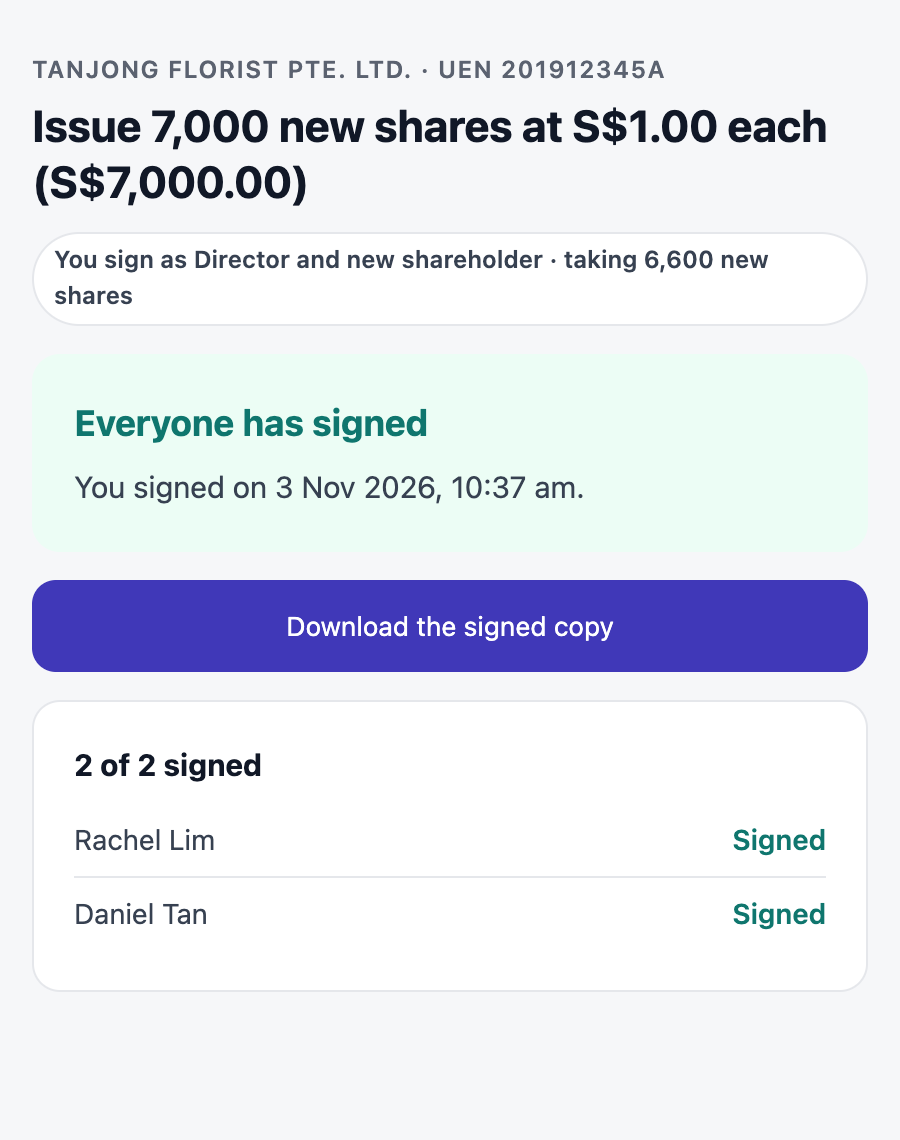
When everyone has signed
- The resolution shows Signed by everyone, with the date.
- Download signed copy gives you the PDF. Its last page lists who signed, when, and how, with a fingerprint of the document so nobody can change it later.
- It is kept for you under Documents.
- Where it changes your records, they change on their own. A new secretary appears in Company Setup; new shares update the share counts.

The follow-up jobs
Some resolutions leave something for you to do. It shows on the resolution page and on your Upcoming list until you tick it off.
Telling ACRA
A new secretary and new shares must be filed with ACRA within 14 days. We never file for you. The page gives you the exact details to enter:
Log in to BizFile with Singpass and file the change, using the details on the resolution page.
Come back and press I have told ACRA. Ticking it done on your Upcoming list does the same thing.
Paying a dividend
Once you have paid the shareholders, press I have paid it and give the date. The payment goes onto your balance sheet. If you had already typed the dividend in by hand, you are asked whether it is the same one, so it is never counted twice.
Collecting money for new shares
See Issue new shares.
Questions
Do the people signing need an SME AI Office account?
No. Each person gets a private link. They open it, read, and sign. Nothing to install and no password.
Can I change the wording after sending?
No, so that everyone signs exactly the same document. Cancel it and start a new one.
Someone says they never got the email.
Ask them to check their junk folder. Then use Email again, or Copy link and send it to them yourself, or the WhatsApp button.
Who in my team can prepare a resolution?
The owner, a co-owner, and any team member given edit access to Compliance. Someone with view-only access can read resolutions but not send them.
Is a resolution signed this way valid?
The document says it may be signed electronically and in counterparts, and the signed copy records who signed and when. Your own company constitution still applies. This is a tool for preparing and signing, not legal advice; if you are unsure, ask your company secretary.
Does SME AI Office file anything with ACRA for me?
No. Where ACRA has to be told, you file it yourself on BizFile with Singpass. We give you the details and remind you until it is done.