Set up payroll
Do this once. Your company details go on every payslip, and each person’s details decide their CPF, their self-help group fund and how they are paid.
Screenshots use a fictional business and staff. Select an image to view it full size.
Your company details
Go to Payroll, then the Company Settings tab.
-
Fill in the company name, UEN, CPF Submission No. (usually your UEN with a suffix such as -PTE-01), address and contact email. These go on every payslip.
Choose the Default Payment Date: the last day of the month, or the 1st of the next month. You can still change it for one person in one month.
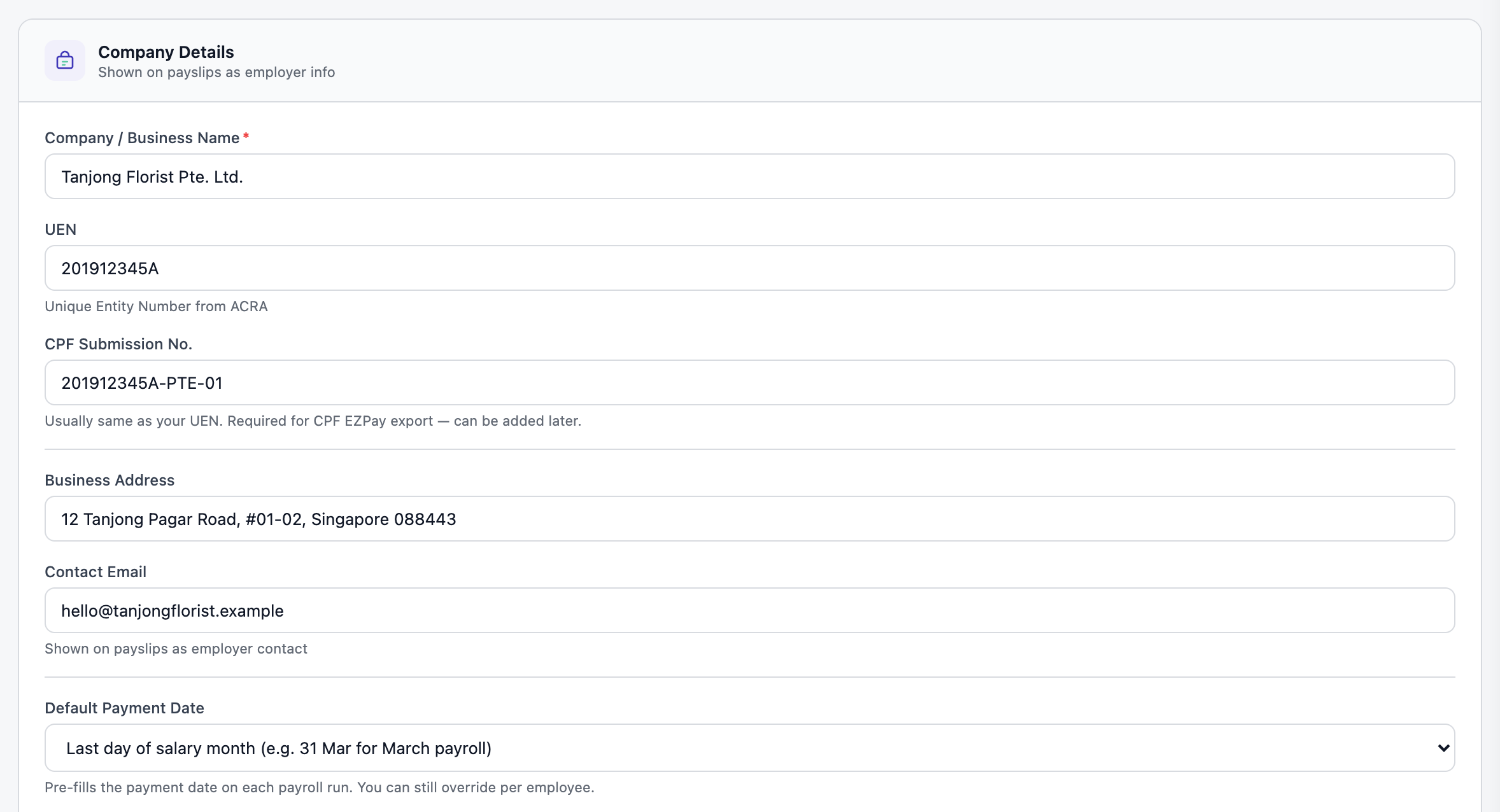
The details that appear on every payslip. Open full size
The account you pay from
Only needed if you want one file that pays everyone. You can fill it in later.
-
On the same page, under Paying salaries from your bank, choose your bank and type the account number and the name on it.
For DBS, add your DBS Organisation ID (it is on your DBS IDEAL profile) and leave the payroll service on SAL unless DBS told you otherwise.
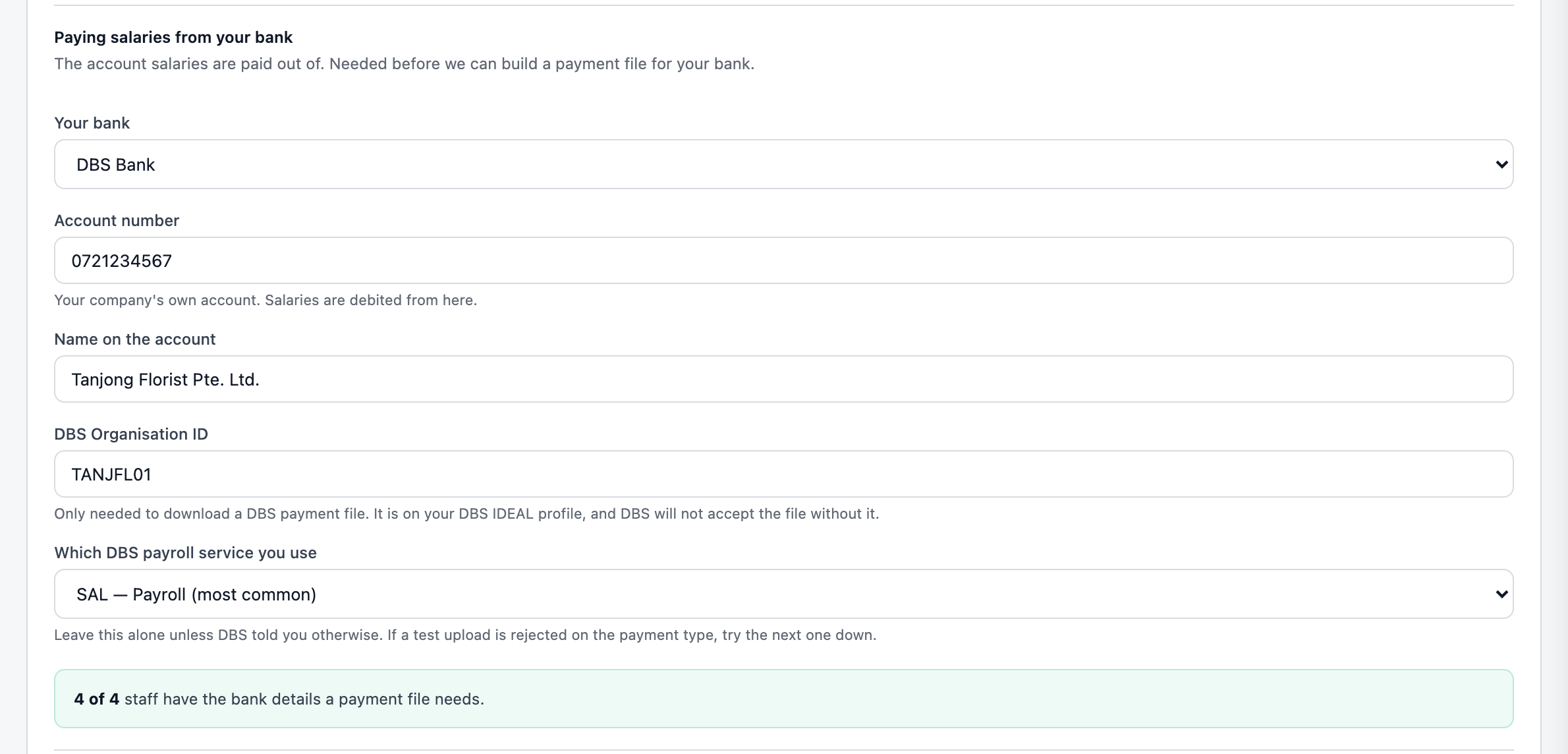
The green line tells you how many of your staff have what the bank file needs. Open full size Leave Automatically post payroll expenses to P&L on, so salaries and employer CPF land in your accounting by themselves. Then press Save & Continue.
Add your team
-
Go to the Employees tab and press Add Employee. Everyone on the payroll is listed here, with their pay.
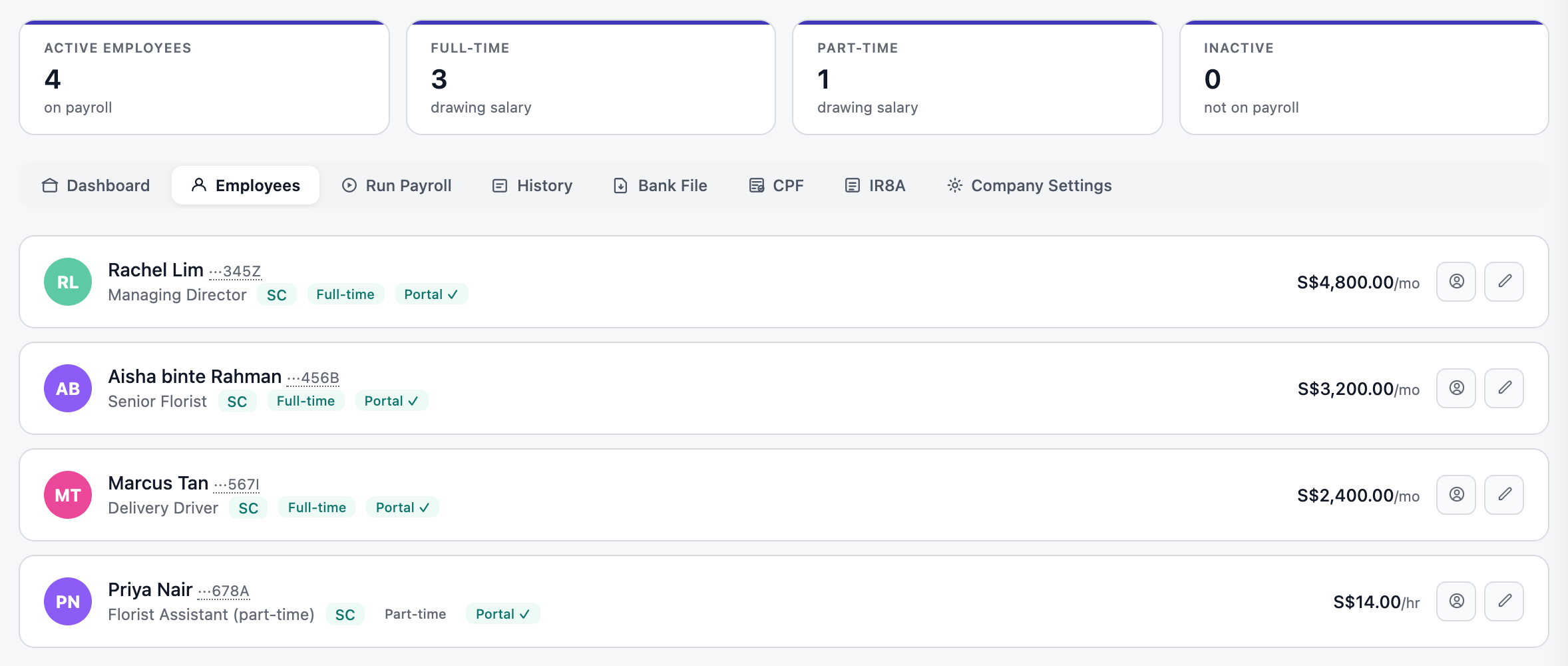
Your team. The two buttons on each row open their portal and bank details, and edit them. Open full size -
Fill in their details. The ones that change their pay:
- Date of birth sets their CPF age band.
- Nationality. A PR is asked which year of PR they are in, because the first two years have lower rates. Foreigners pay no CPF.
- Race and religion decide the self-help group fund (CDAC, SINDA, MBMF or ECF). Untick the box if they have opted out.
- Full-time (a monthly salary, plus any fixed monthly allowances) or Part-time (hourly or daily rates for weekdays, weekends and public holidays).
The full NRIC or FIN is needed for the CPF file and IR8A. It is stored encrypted, and lists show only the last four.
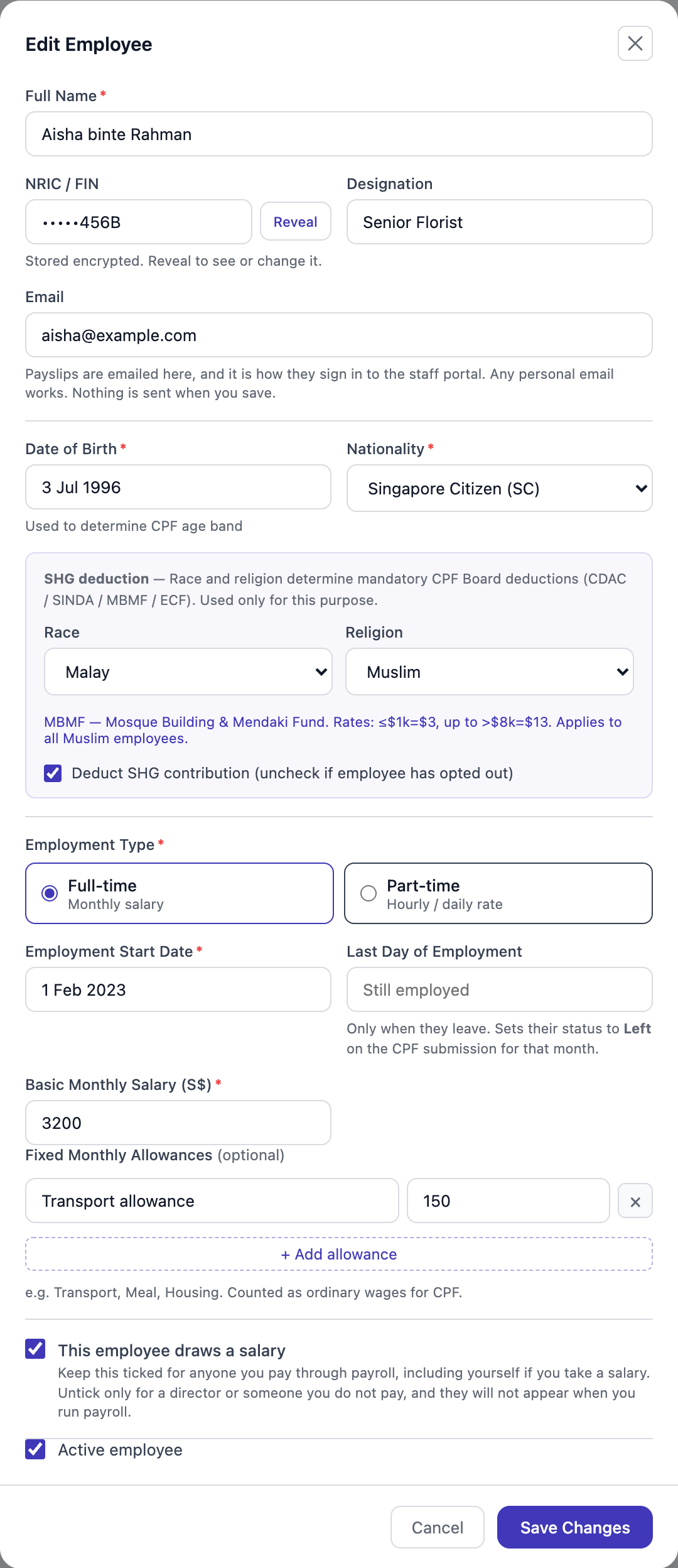
A full-time employee with a fixed transport allowance. Muslim, so MBMF is deducted. Open full size Leave This employee draws a salary ticked for anyone you pay, including yourself. Untick it only for a director you do not pay, so they stay off the payroll. Press Save Employee.
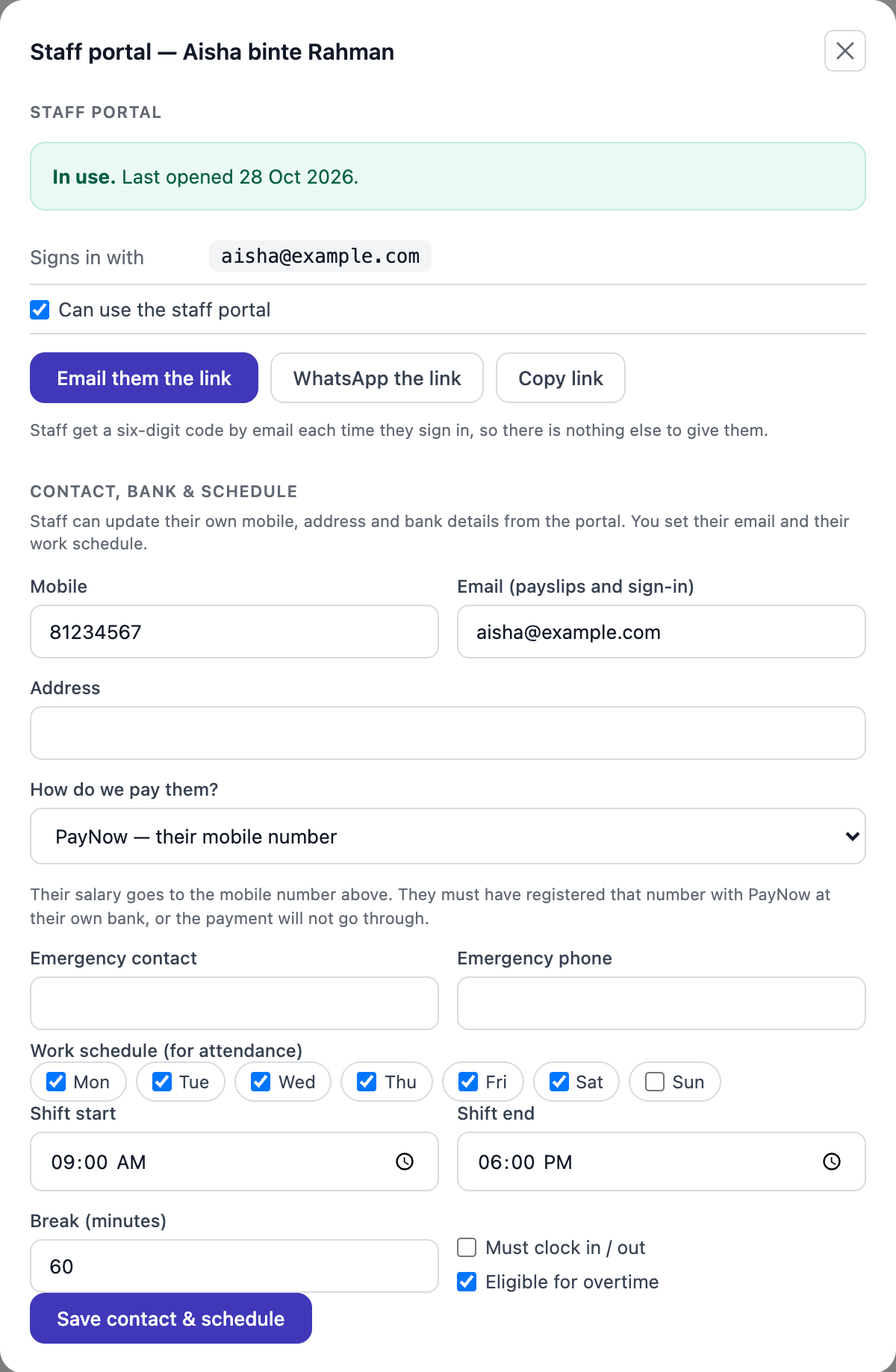
How each person is paid, and the staff portal
Press the round account button beside someone’s name.
- How do we pay them? Into their bank account (bank and account number), or by PayNow to their mobile or NRIC. PayNow needs no bank details at all.
- The staff portal: their email is how they sign in with a six-digit code, to see payslips and apply for leave. Press Email them the link, WhatsApp the link or Copy link. Nothing is sent until you press one.
- Their work days and shift, if you use attendance.
Questions
Do I add myself?
Yes, if you pay yourself a salary through the company. You are an employee like anyone else here.
Someone left. Do I delete them?
No. Set their last day of employment, and untick Active employee after their final payroll. Their history stays for CPF and IR8A.
Can I edit many people at once?
Yes. Press Edit as table on the Employees page, change what you need, then Review & save to check every change before it is saved.
Next: Run payroll each month · ← Payroll