Help/Personal Coach/Schedule and Clients
Schedule and Clients
Schedule is the one screen to open in the morning: your sessions in order, where to go, and what you noted last time. Clients is everyone you train, with their packs, their sessions and your notes.
Screenshots use a fictional business and figures.
Schedule
Press Schedule in the sidebar. It opens on today. Use the arrows or the date to see another day, and Today to come back.
Each session shows the time, the client, the service and where. A home visit shows their address and a Map ↗ link that opens Google Maps.
Beside each is how it is paid: the pack it comes from, Paid with the amount, Waiting for payment with the amount still to pay, or Says paid, check your bank when the client tapped “I have paid” and you have not checked yet. A recurring booking is marked Weekly.
Under the client is Last note, the latest thing you wrote on them, so you walk in knowing about the sore knee.
At the top, notes tell you when a recurring booking request, a pack payment or a session payment is waiting for you to check. On a new account, three steps sit at the very top until they are all green: your website, what you sell and your hours, and how clients pay you (see Getting started). An open class shows how many are booked, with Open the register.

Done, Didn’t come, WhatsApp
- Money received on a session that is not paid yet, once you see the money in your bank. The client is emailed their confirmation. Done appears after that: it is not offered on an unpaid session, because Done records the money as received.
- Done when the session has happened.
- Didn’t come for a no-show. For a session from a pack, your rule decides whether they lose it or get it back.
- Undo if you tapped the wrong one.
- WhatsApp opens a message to the client already typed in your words from Messages: the payment reminder if they have not paid, else the confirmation with the time and their booking link. Change it before you send, for “running five minutes late”.
- Details opens the full booking, to move or cancel it.
Clients
Press Clients. Everyone who booked on your page or bought a pack is here. Type in the search box to find one.
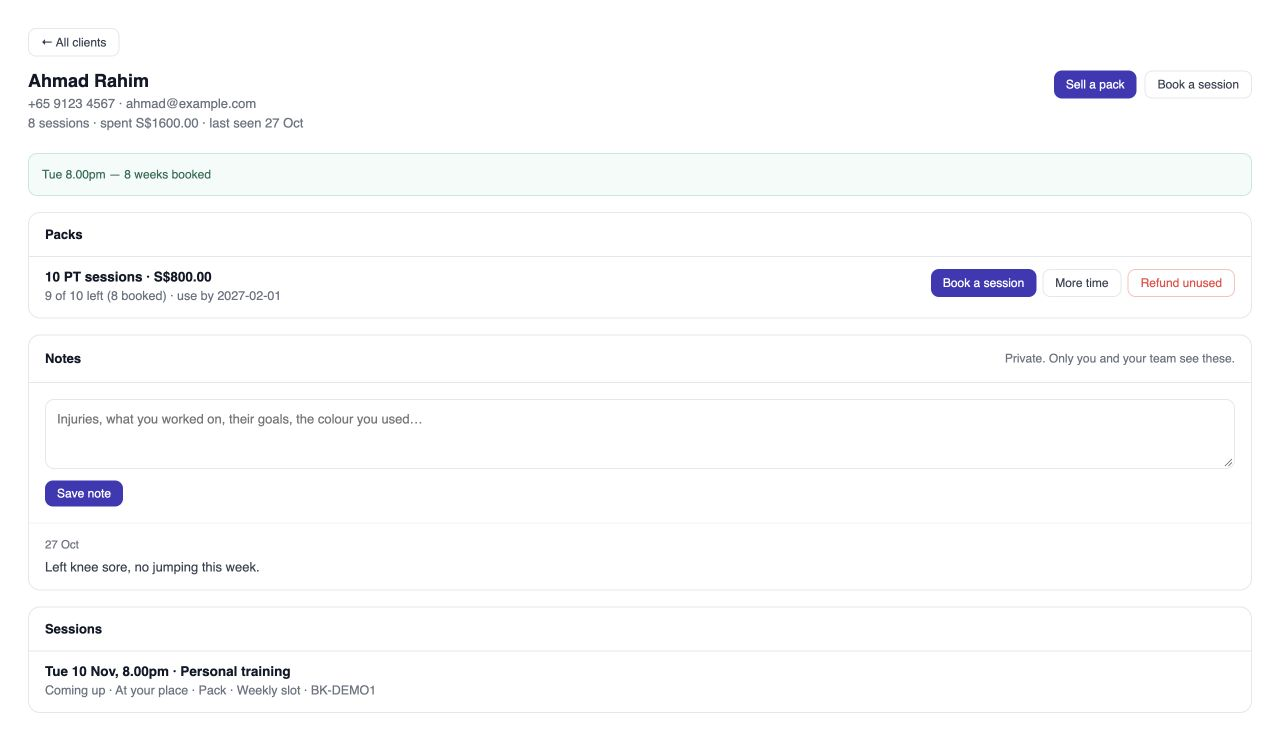
Open a client to see how many sessions they have had, any no-shows, what they have spent and when you last saw them.
Under Packs: each pack, how many are left and when it ends, with Book a session, More time and Refund unused. A pack waiting for payment has Money received and Paid in cash.
Under Sessions: every session, coming and past, how it was paid, and whether it is part of a recurring booking. Next to a coming session from a pack is Every week, to start a recurring booking.
After a no-show or a late cancel on a pack, press Give the session back or Count it as used to change the outcome for this one time.
At the top of a client are Sell a pack (see selling in person), Book a session and WhatsApp, which opens with the message for their next session (or a hello when nothing is booked).
Paid first, time to arrange
Some services are easier to arrange by talking first: a workshop for a group, a series of visits to a family. For those, the client pays first and you agree the time with them afterwards.
Under Sell, open Services, edit the service and tick Customer pays first, you arrange the time.
Type Your one question, like “Who is the story about, and what is the occasion?”, and an example answer. The example shows faintly in the box to help the client answer.
On your booking page and website, that service has no calendar. The client answers your question, gives their name, email and mobile, and pays by PayNow.
It then waits at the top of Schedule under To arrange, with their answer, WhatsApp (your Paid, time to arrange message, asking when suits them) and Email. If they say they have paid, first check your bank and press Money received.
Once you have agreed a time, press Set the time. Pick the date, time and place, and press Book. They are emailed their booking.
The money is recorded as paid in advance, and moves into income when the session happens, the same as a pack. If you cannot arrange it, Refund unused on the client gives it back.
Private notes
Open the client. Under Notes, type what you want to remember: injuries, goals, what you worked on, the colour you used.
Press Save note. It is dated, and the latest one shows on Schedule next time you see them.
Notes are private: only you and your team see them, never the client. They are kept on the client’s contact, so they are there in CRM too.
Questions
Where are the calendar and the list of all bookings?
Under Today in the sidebar: Calendar and Appointments, as they were in Bookings. See Take and manage bookings.
Does Done move money into my income?
A session from a pack moves its share into income once it happens. A session paid on its own was already counted when you confirmed the payment.