Add products
Each product has a name, a price and up to five photos. Sizes and add-ons are options the customer picks, and each can add to the price. If a size can sell out on its own, the shop counts stock for each size.
Screenshots use a fictional business and figures. Select an image to view it full size.
Add a product
Go to Products and press Add Product.
-
Fill in the Product Name and Price (SGD). Add up to five Photos; the first is the one shown in the shop, and you drag them to change the order. Photos are shrunk for you, so a photo straight off your phone is fine.
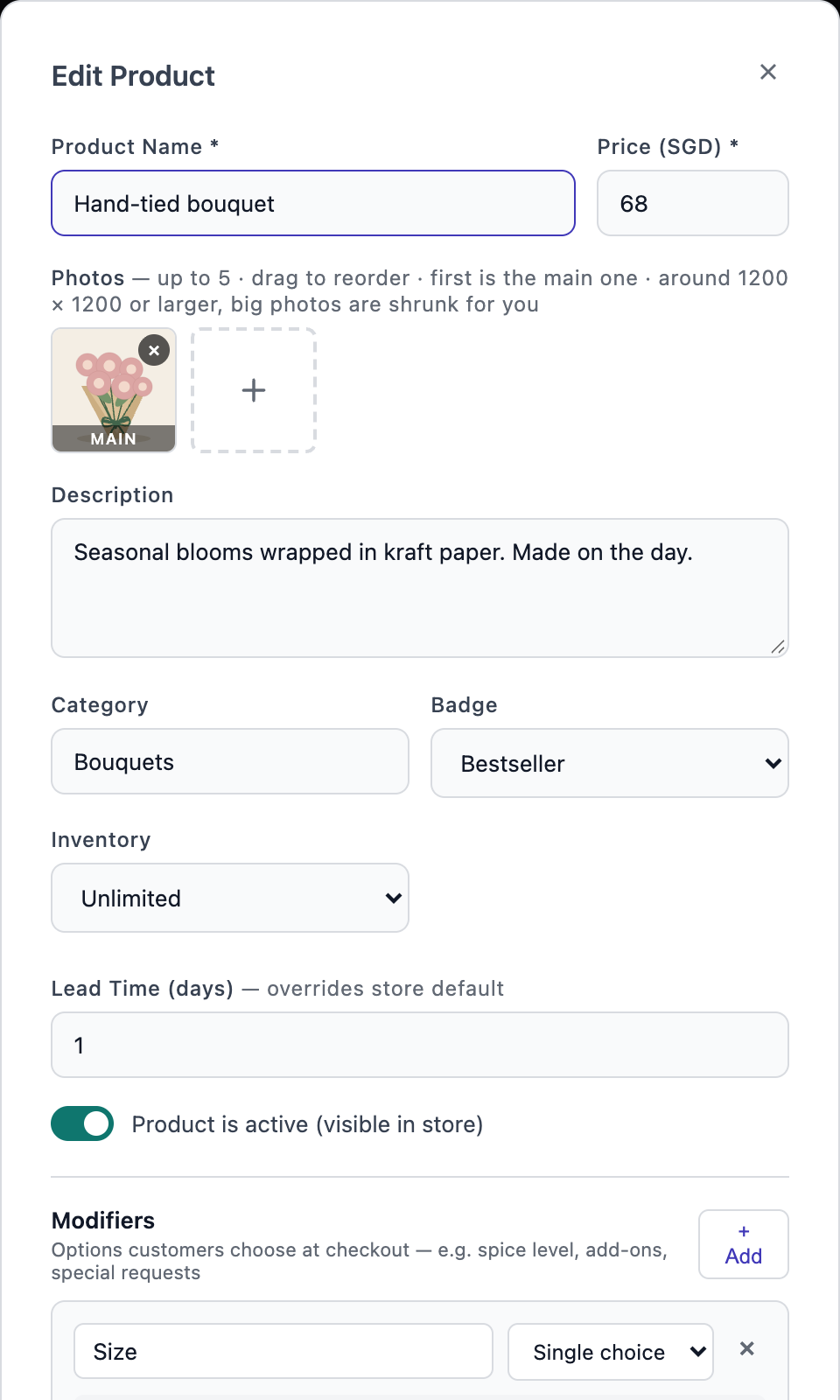
The product editor, with an example product image, description, price and options. Type a Category, such as Bouquets or Gifts. Products are grouped under their category in your shop, with tabs across the top.
Pick a Badge if you like: Bestseller, New, Popular or Limited.
For Inventory, leave Unlimited, or choose Set stock qty and type how many you have. The count goes down each time an order is confirmed.
Lead Time (days) is only for a product that needs more notice than the rest of your shop. Leave it blank to use your shop’s own lead time.
Limit per day is the most you can make for one collection or delivery day, like 20 tins of pineapple tarts. When a day is full, checkout shows that day greyed out with full for Pineapple tarts, and the customer picks another day. Leave it blank for no limit.
Switch on Seasonal pre-order for a festive menu, like Chinese New Year. Set when customers can order it (from and until) and when they can collect or get it delivered (from and until). Before ordering opens your shop shows Pre-orders open with the date; after it closes the item leaves your shop by itself. At checkout, customers only see collection days inside your dates. Leave any box empty for no limit that way.
Press Save Product.
Sizes and add-ons
In the same window, under Modifiers, press + Add. Give it a name, such as Size, and pick a type:
Single choice: the customer picks one, such as a size. Multi-choice: they can tick several, such as add-ons. Free text: they type something, such as a card message.
-
Type each option and, if it costs more, the extra amount next to it. + Add option adds another. Quick fill has ready-made lists, such as Small, Medium, Large.
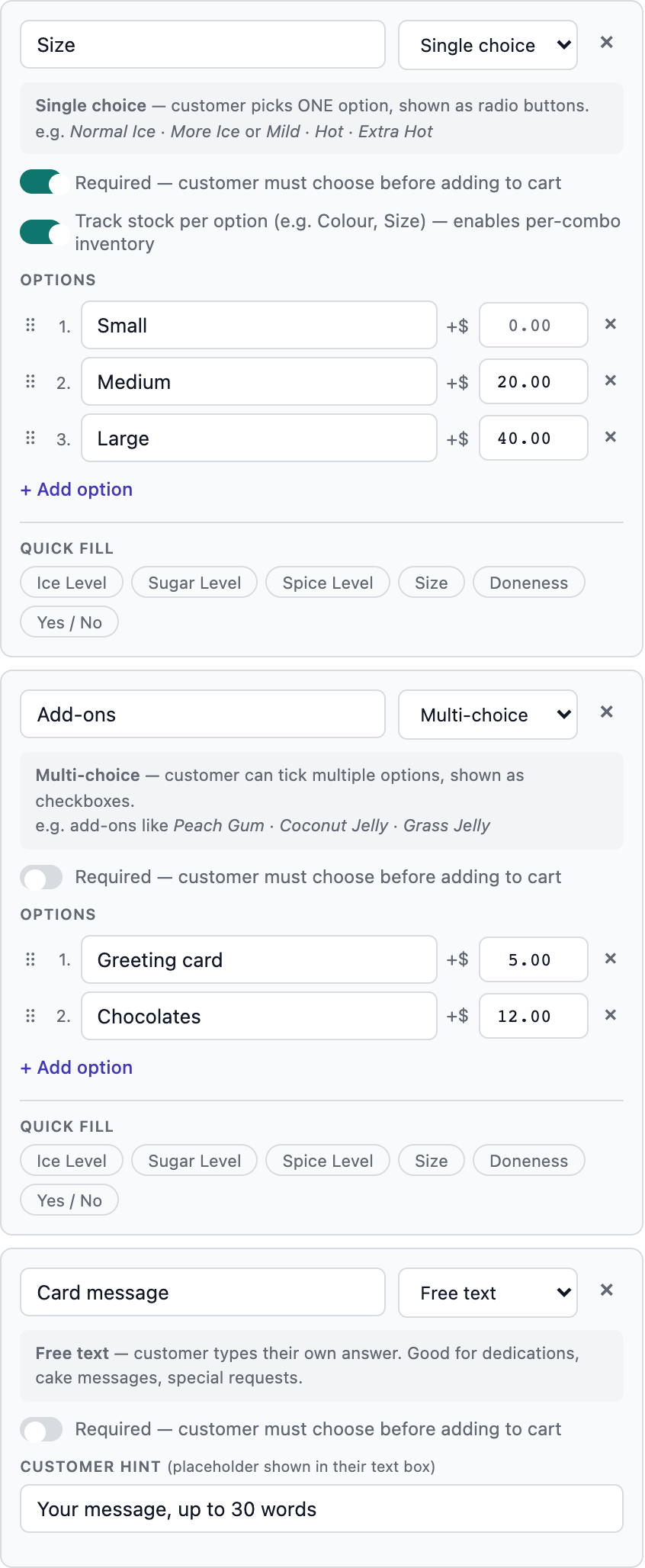
A size the customer must pick, two paid add-ons, and a card message. Switch on Required if the customer must choose before adding to cart.
An option can also take money off: type a minus in its price, such as -0.20 for less milk. The product never goes below zero, whatever is picked.
In the shop, a product with options opens a sheet where the customer picks them. The price on the button adds up as they choose.
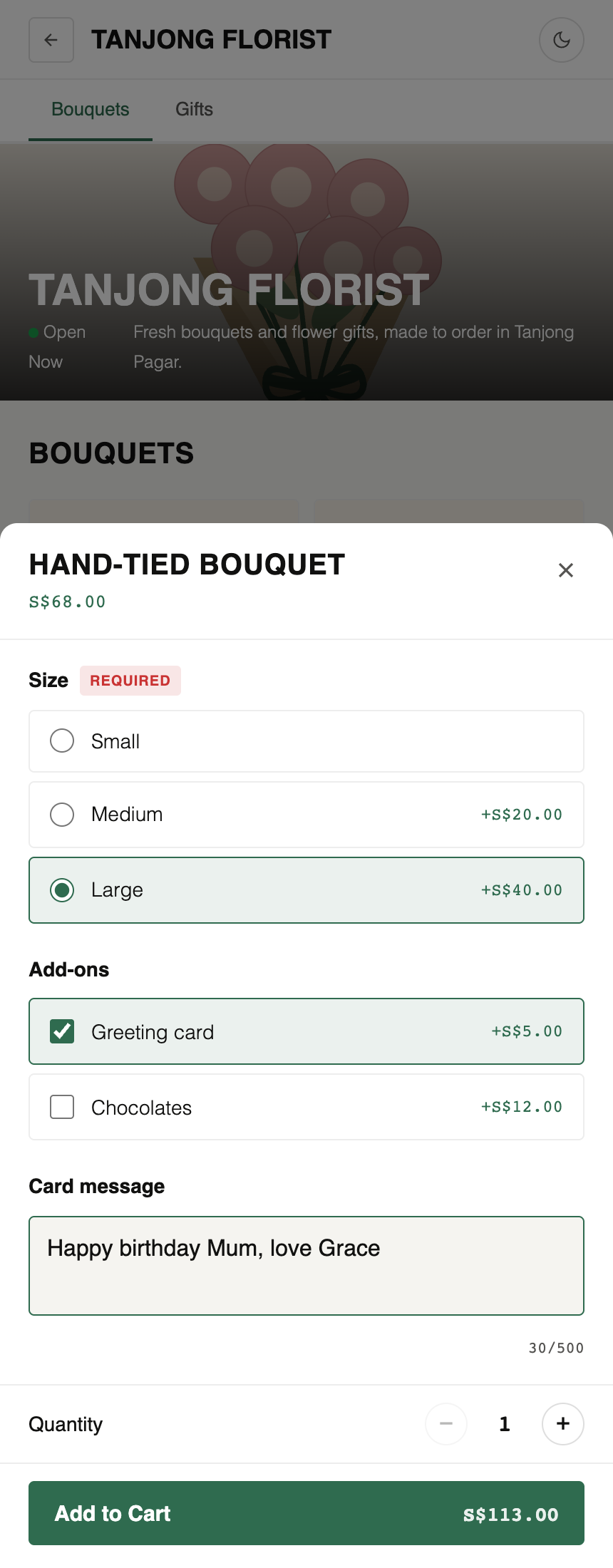
Stock for each size
When a size can run out on its own, switch on Track stock per option for that single-choice option. A Variants table appears, with one row for each size (or each colour and size together). Type the stock for each row, and a SKU if you use them.
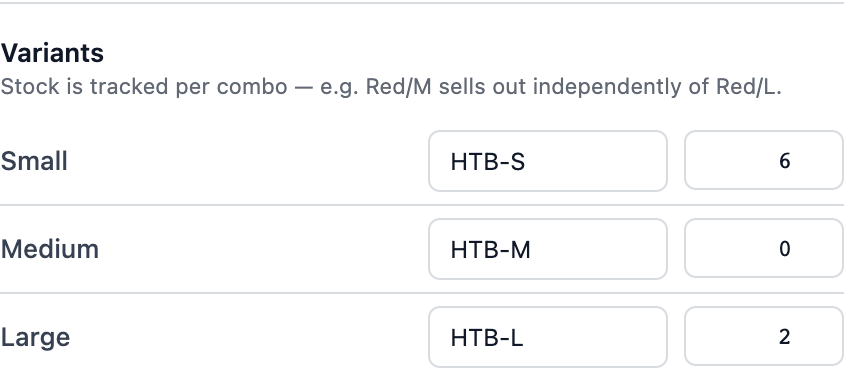
When a row reaches 0, customers see that size as sold out and cannot add it. The other sizes keep selling.
Sell from Inventory, one list with your POS
If you also sell at POS, keep one list of products in Inventory and sell them here too. Each size and colour can have its own price, and online orders come off the same stock count as your POS.
In Inventory, open a product and press Sell in the Online Shop. It appears in your shop’s product list. Add its photos and description here as usual.
Or open a product already in your shop and press Move into Inventory. Options that track stock per size become Inventory options, and the other choices become add-ons. Open it in Inventory afterwards to type what each one costs you.
A product sold from Inventory shows Sold from Inventory. Its price, options, add-ons and stock are changed in Inventory; photos, words, badge and dates are changed here. Stock comes off when you confirm the payment and goes back if you cancel the order. Press Stop using Inventory to make it a plain shop product again.
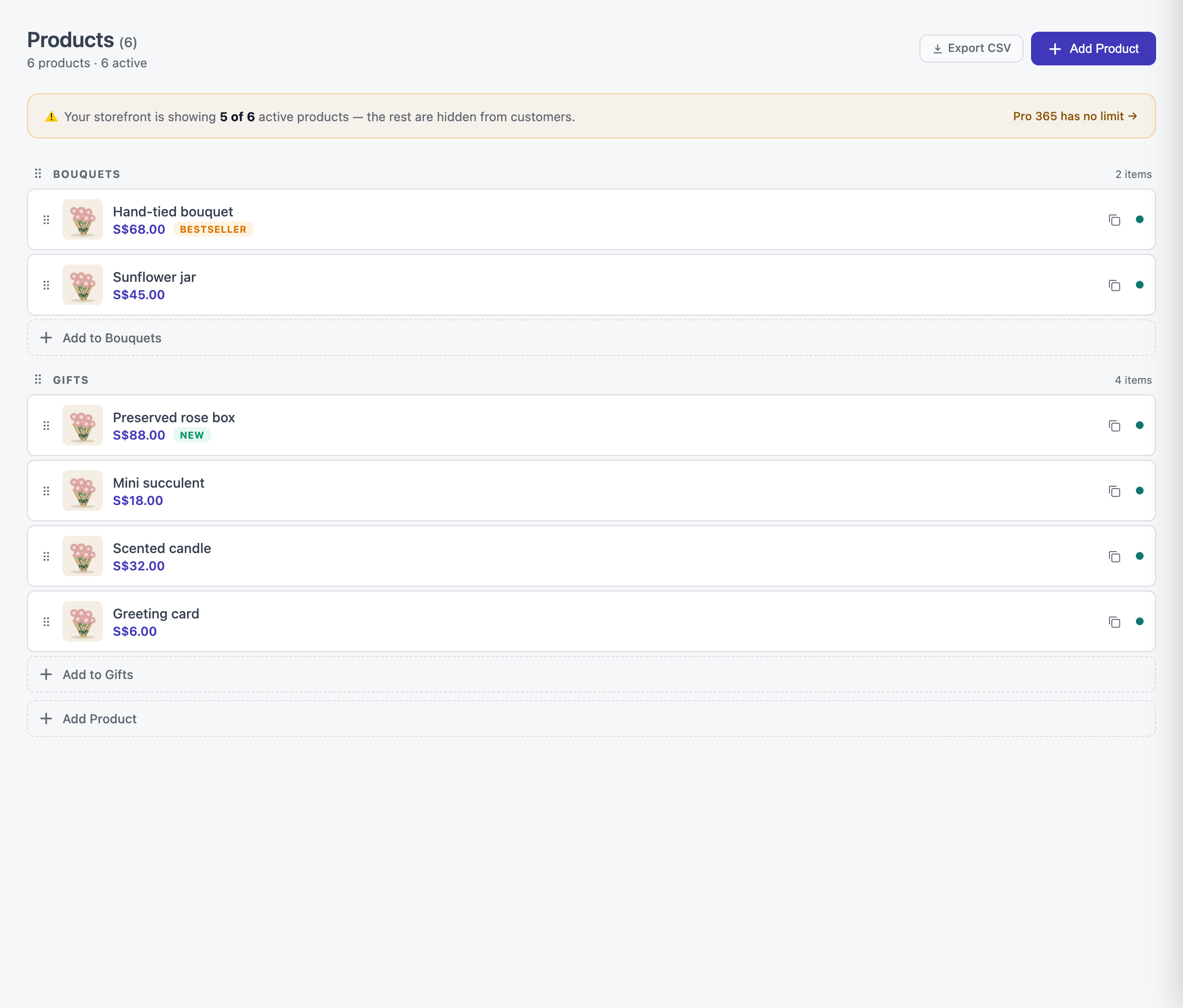
Arrange your list
- Drag a product by its handle to change its order in the shop. Drag a category heading to move the whole group.
- Under each category, Add to adds a product straight into that category.
- The copy button on a row duplicates a product, options and all.
- Switch off Product is active (visible in store) to hide a product without deleting it.
- Export CSV downloads your whole product list.
Questions
How is the limit per day counted?
By how many were ordered for that collection or delivery day, from every order that is not cancelled. An order still on the payment screen holds its place for an hour. If your shop has no collection days, the limit counts orders placed today, and the item shows Sold out today once it is reached.
Can a customer order a festive item and an everyday one together?
Yes. The whole order is collected on one day, so checkout only offers days inside the festive item’s collection dates. Two festive items whose dates do not overlap have to be ordered separately, and checkout says so.
When does stock go down?
When you confirm the payment, not when the customer adds it to their cart. A cash sale at the counter takes it off straight away.
What if I sell out of a product?
If you set a stock number, the product shows as out of stock at 0. With Unlimited, switch the product off until it is back.
Can one option change another option’s price?
No. Each option adds its own amount to the product price. Two options together add both amounts.
Next: Take and confirm orders · ← Retail