Help/Accounting/Scan receipts
Scan receipts
Upload a photo or a PDF. SME AI Office reads the shop, the date, each item and the GST, and files it into your expenses or your revenue. You do not type anything.
Screenshots use a fictional business and figures. Select an image to view it full size.
Upload
Go to Upload. The first time, you are asked a few questions about your business (company or sole proprietor, GST, financial year). They decide how every receipt is filed, so they come first.
Choose Expense for receipts, invoices and bills you paid, or Revenue for sales reports and payment summaries.
-
Drag your files in, or press browse files. JPG, PNG, WEBP and PDF work, up to 50 files at a time. One receipt per file reads best.
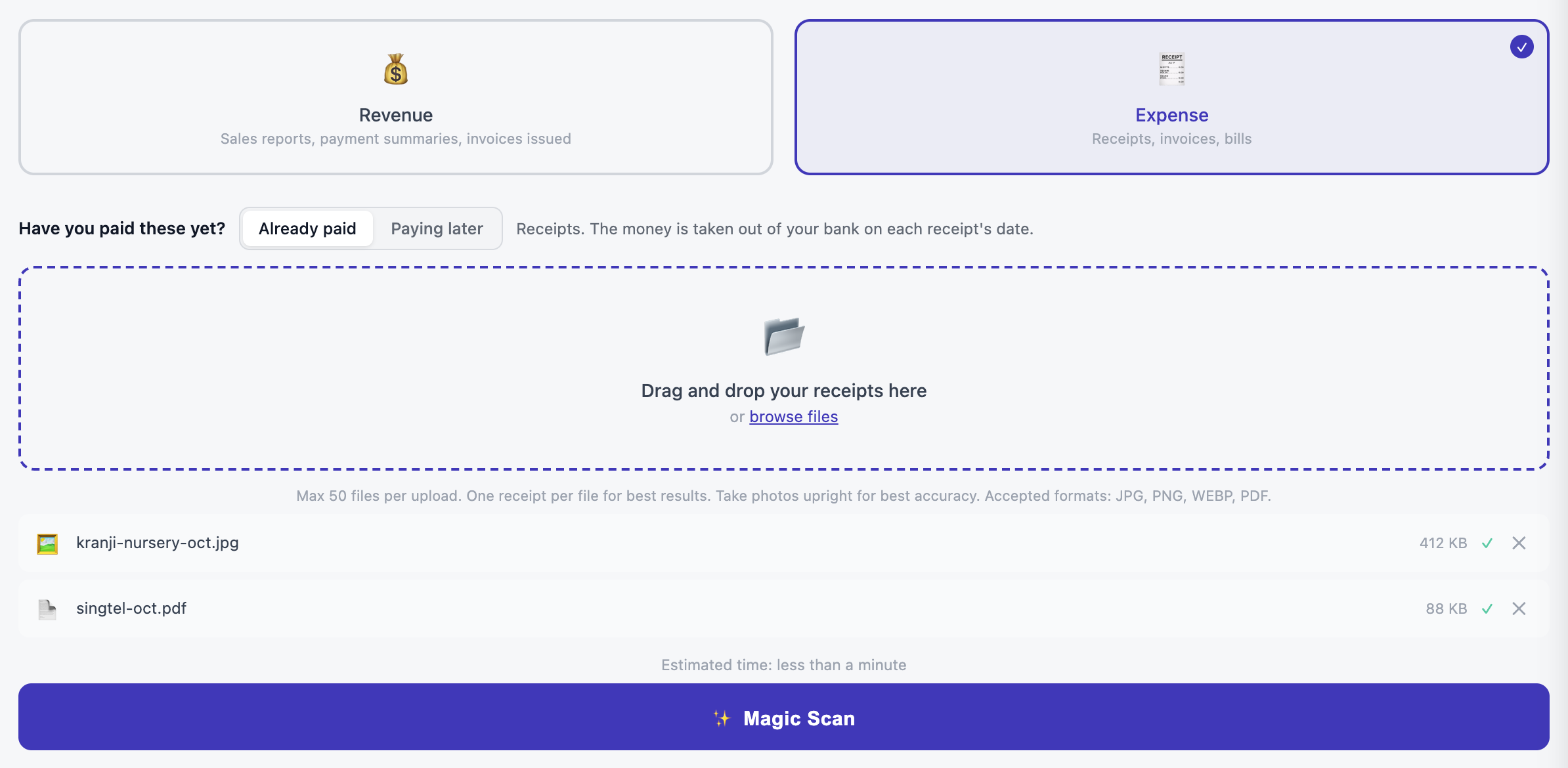
Expense is chosen and two files are ready. Open full size Press Magic Scan, then Start Scan. Keep the tab open until the files have uploaded, which takes a few seconds. After that you can leave.
On a phone: take the photo with your camera first, then upload it from your photo library. Hold the receipt upright.
Bills you pay later
A supplier sometimes gives you a bill to pay at the end of the month. Before you upload it, answer Have you paid these yet? with Paying later.

When you pay it, open the bill in Expenses and press Mark as paid.
See what was read
Each file shows Reading while it is being read, then what was found: the shop, the date, the amount, the category and each line item.
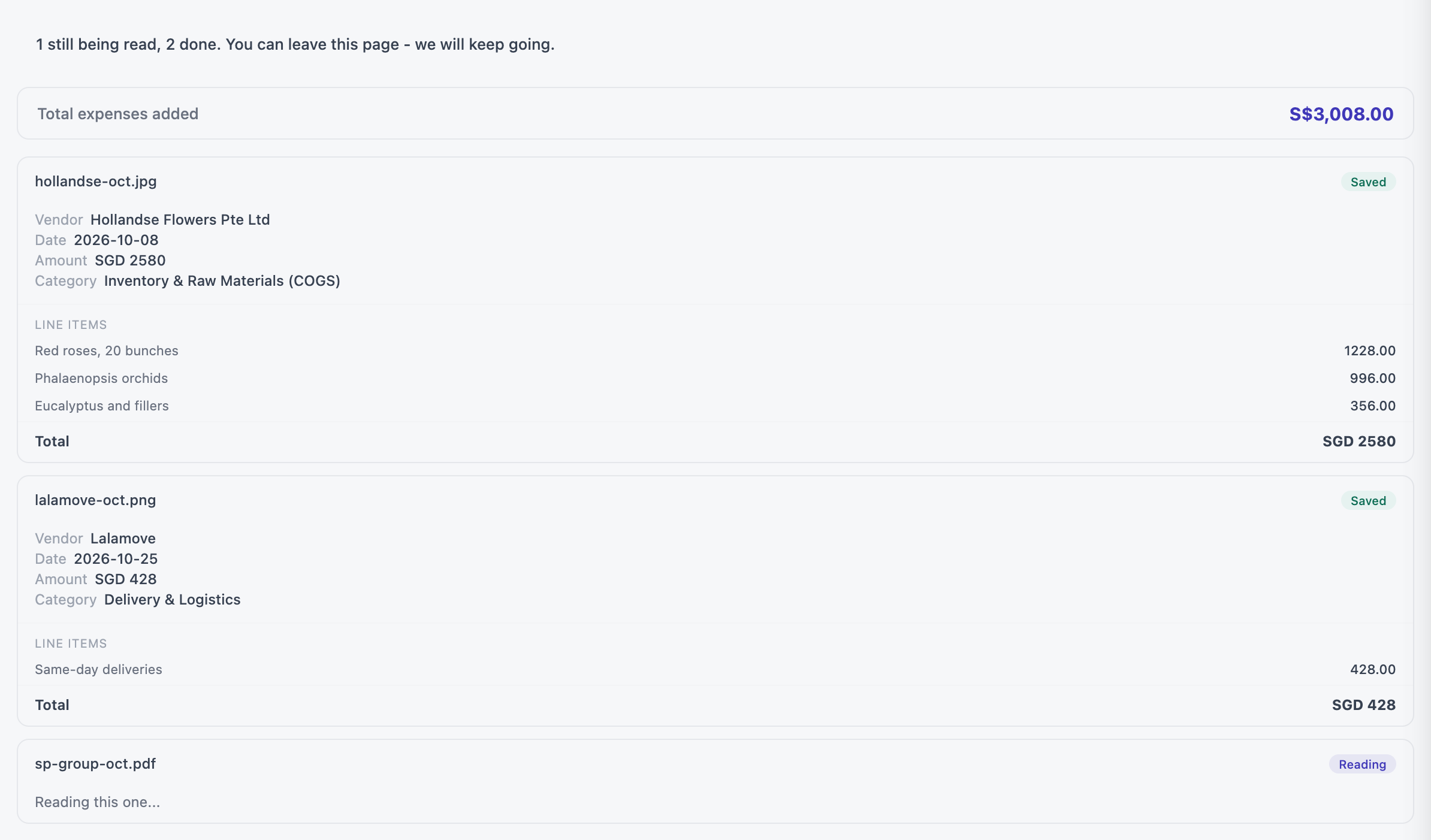
- Duplicate: a receipt that looks like one you already uploaded is saved but flagged. Sort it out under Needs Attention in Expenses.
- Failed: most files that fail are tried again later by themselves, and the message says so. Then there is no need to upload them again.
Questions
Can I leave the page while it reads?
Yes. Once the files have uploaded, the reading carries on without you. Come back to Upload, Expenses or Revenue later and they are there.
What about GST?
If you are GST-registered, the GST on each receipt is split out and counted as input tax on your GST F5. You can change it line by line there.
A receipt is in a foreign currency.
It is converted to Singapore dollars at your exchange rate. You can set your own rates in P&L Settings, and change the currency on any one receipt.
I have no receipt for something.
Type it in with Add Expense on the Expenses page, or Add Revenue on the Revenue page.